Study reports
A study report is the write-up of one study: a short list of themes, the claims under each theme, and the clips that back every claim. A claim can't be saved without a clip, so everything in a study report can be traced back to what someone said or did.
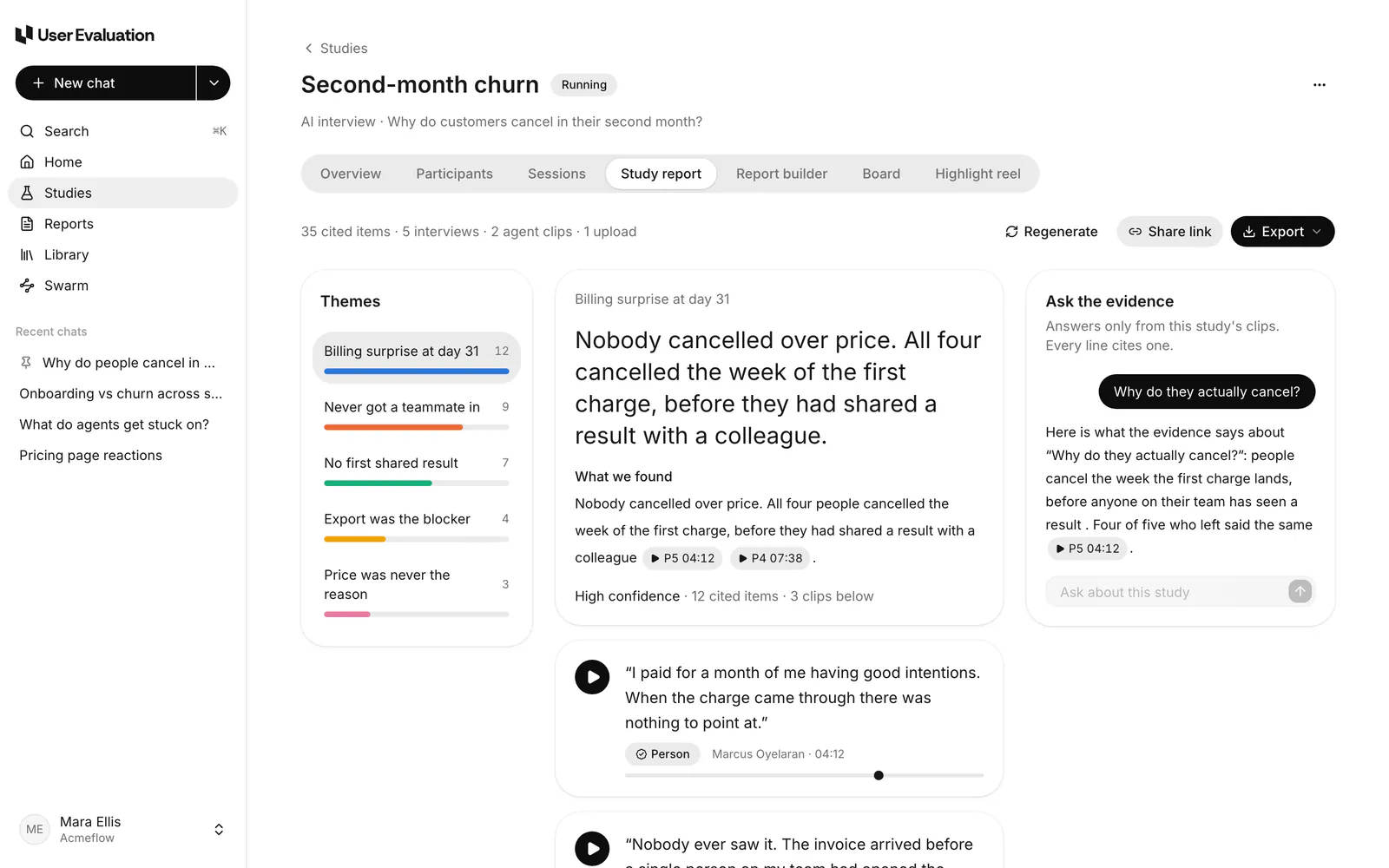
Generated automatically
When a study reaches its target, or its recruiting deadline passes with at least one session done, the study report is generated on its own. It usually starts about ten minutes later, so the last session's transcript is in, and it is always ready within 48 hours. The study's owner gets an email (if Study report emails are on in Settings → Account) and a card on Home.
The switch is on the study's Overview: Generate the report automatically. It's on for new studies. Turn it off if you'd rather generate the study report yourself; turning it on again for a full study queues it then.
Each study is generated automatically once. If it can't be (for example, a workspace started more than 20 automatic study reports in a day, or there's nothing to cite), the owner gets an email and a Home card asking them to generate it by hand.
Generate a study report yourself
- Open the study and go to the Study report tab.
- Click Generate study report. Eva reads every clip; this usually takes about a minute.
- When it's done you'll see Study report ready. If it fails, click Try again.
You need at least some transcripts or clips. If the study has none yet, you'll see "This study has no transcripts or clips yet, so there is nothing to cite." If the study has transcripts but no clips, Eva first cuts clips from the longest answers.
When the study report is ready, a readout.ready webhook is sent if you've set one up.
Generating a study report doesn't end the study. While it's still running, the report is a snapshot of what's in so far: recruiting carries on and the interviews you paid for still happen. Regenerate it as more come in. The study finishes (status ready) when it reaches its target or its recruiting deadline passes and its report is in, or when you end it early (see Pause, resume and end).
What you'll see
- Themes: usually two to six, each with a bar showing how many items it cites.
- Claims under the selected theme, each with clip chips you can click to play the moment.
- Confidence for each theme: High, Medium or Low, with the number of cited items and clips. Thin evidence is labelled low confidence instead of being dropped.
- Other moments: clips that didn't fit a theme.
- Results: the study's numbers.
- What to test next: up to ten suggested next steps.
- Ask the evidence: questions answered only from this study's clips. See Ask the evidence.
Clips from Swarm agents are marked as agent evidence. A theme backed only by agents says so, and agent clips carry the note "Medium until confirmed by people".
Regenerate
After new sessions come in, click Regenerate. Eva rewrites the themes and claims from all the evidence the study has now.
Who can do what
Researchers who can edit the study see Generate study report, Regenerate, Share and Export. Observers can read the study report but can't regenerate it or question the evidence.