Runs, Flow & findings
Open a run from Swarm to see what the agents did. A run page has three tabs: Sessions, Flow and Findings.
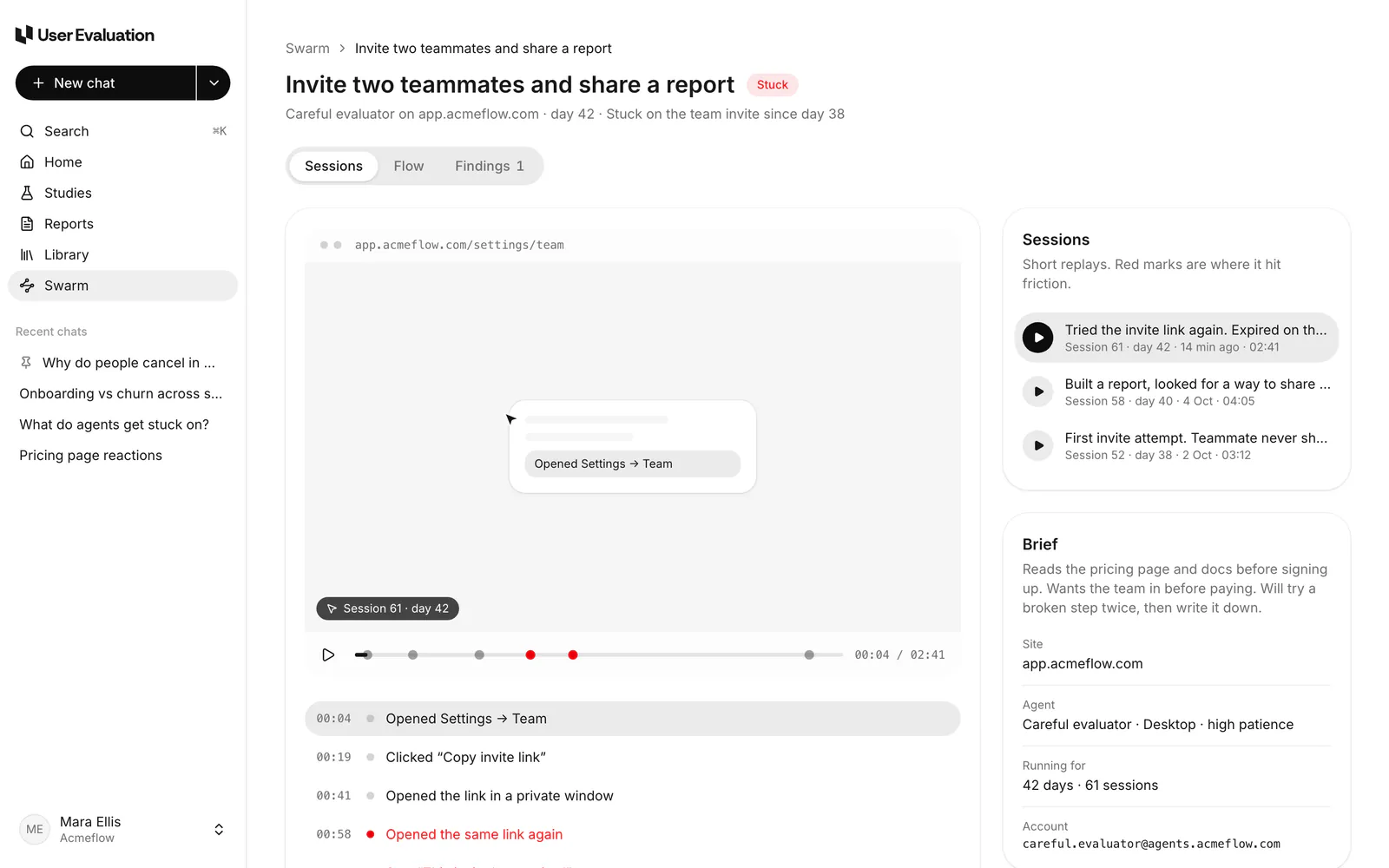
Sessions
One session per agent. Each one replays step by step: the page, what the agent did, and why, with a screenshot. Red marks show friction. While a run is going, new steps appear live, and a strip shows the AI cost so far against the run's cap.
A session can stop early. When it does, it says why: for example it hit the step or time limit, met a captcha or a payment form, kept being sent off your site, or your server returned errors.
Flow
Every screen it saw, left to right. The Flow tab lays out the screens agents passed through as a map you can pan and zoom.
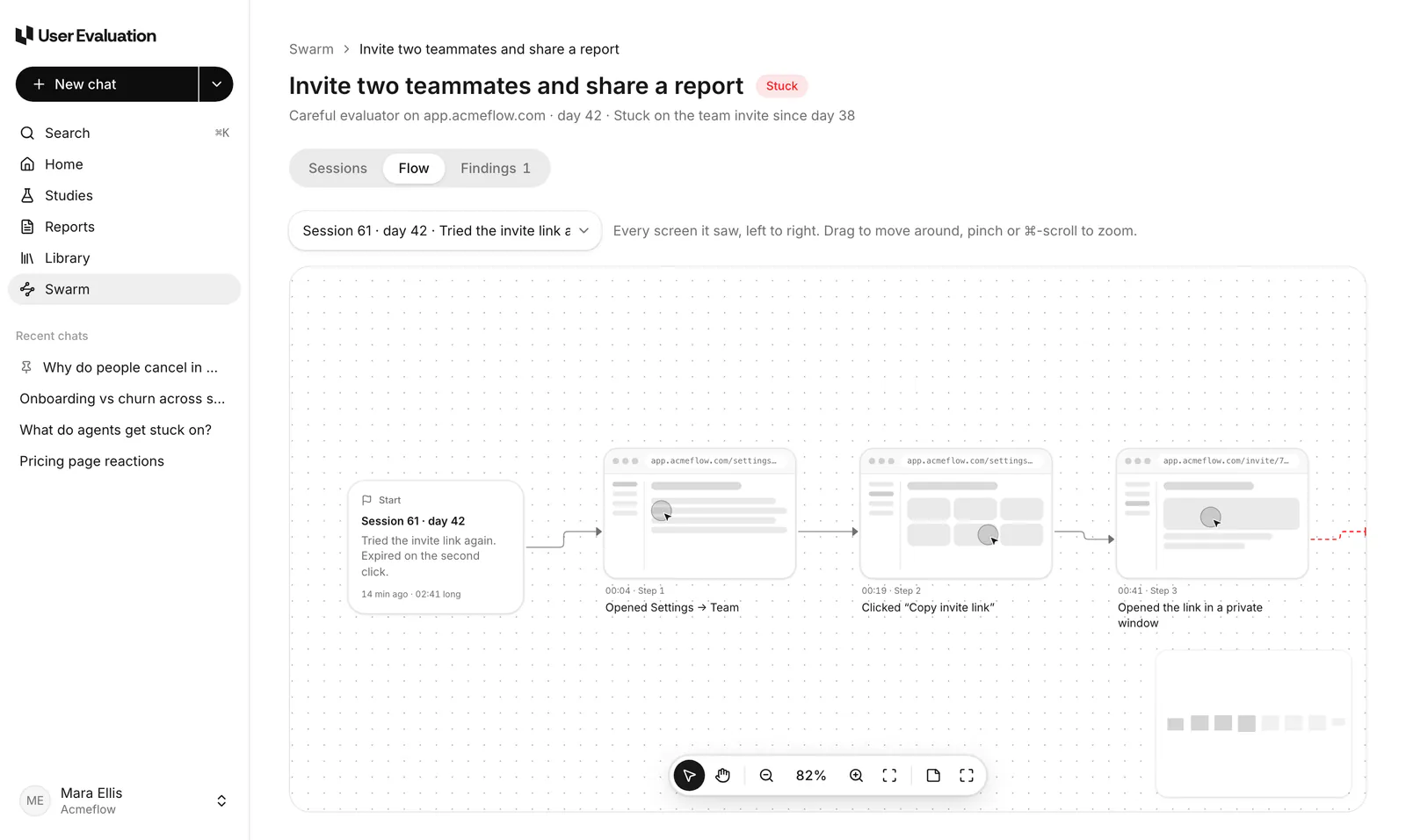
- Use the select and hand tools, zoom, fit to screen and full screen.
- You can drop sticky notes on the canvas while you look. They aren't saved when you leave the page.
Findings
A finding is a problem agents ran into. Each has:
- a severity: critical, high, medium or low,
- how many agents hit it, out of the total,
- steps to reproduce,
- evidence clips from the sessions.
Findings from agents carry medium confidence until 5 people confirm.
Confirm a finding with people
Click Confirm with 5 people; the button shows the price. This sets up a short AI interview study with five everyday people from our panel, at the usual $39 an interview ($195 in total). It's charged to your saved card, or a checkout opens. A finding counts as confirmed when at least four of the five agree.
If a finding isn't worth acting on, click Dismiss finding. It stays in the run's history.
Ask Eva about a run
From a run's menu on the Swarm page, choose Ask Eva about this run to ask questions such as "Where did mobile agents give up?". Eva answers from the run's sessions, with citations.
Manage runs
You can pause and resume a run. Draft runs can be edited, access-checked and started later. Only admins can delete a run.