Live interviews & the notetaker
There are three ways to be there live:
- Run the call yourself with a human interview study.
- Listen in on an AI interview while it happens.
- Send the notetaker to a meeting you already have on Zoom, Google Meet or Microsoft Teams.
Run a human interview
- Create a Human interview study (see Study types). Add the hosts, your weekly availability, the slot length and a buffer between calls.
- Launch. Everyone who passes the screener gets the booking link and picks a time. You can share the booking link yourself too.
- Booked calls appear under Upcoming calls on the study's Overview. Click Join call when it's time.
The call runs in our call room in the browser; nobody installs anything. While you talk you'll see:
- the Discussion guide, where you tick questions as you go,
- Private notes that only your team sees,
- End call when you're done.
Participants can join up to 10 minutes before the start, and can reschedule or cancel up to 2 hours before.
Listen in on an AI interview
While an AI interview is running, it shows on the study's Overview under Latest sessions with a Listen in button.
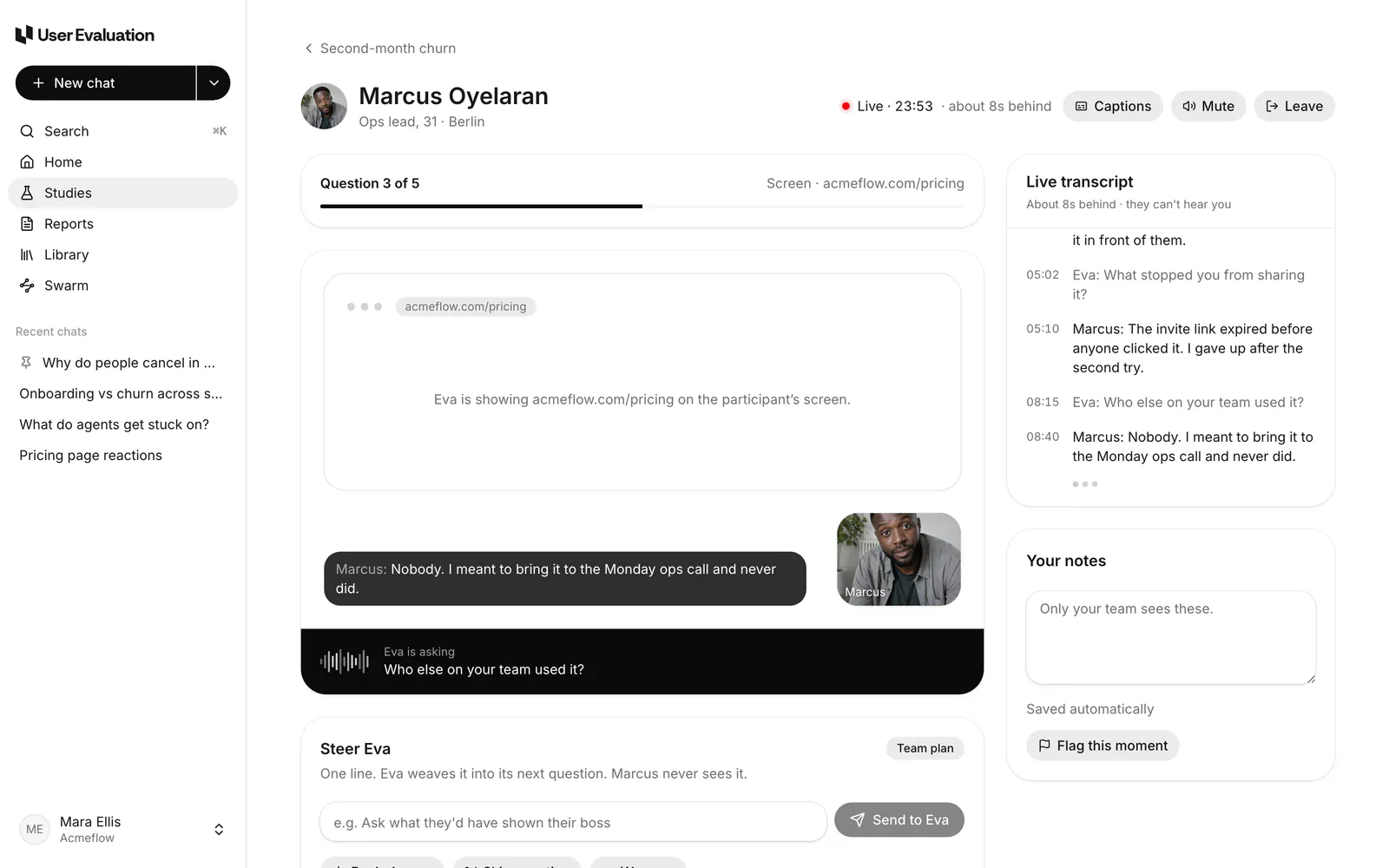
You'll see the live transcript, about 8 seconds behind, and a place for your own notes. The participant can't hear you.
Steer Eva
Under Steer Eva you can nudge the interviewer while it runs. The participant doesn't see your nudge on screen. Steering needs the Team or Scale plan; on Free and Pro the card shows an upgrade prompt instead.
- Type one line, for example Ask what they'd have shown their boss, and click Send to Eva. Eva asks it in its own words.
- Push deeper: Eva asks one more follow-up on the current answer before moving on.
- Skip question: Eva leaves out the next question in the guide.
- Wrap up: Eva closes the interview. If the participant hasn't answered enough questions to finish yet (at least half), Eva waits until they have, so they still get paid.
Eva acts on a nudge at its next turn, after the participant finishes the answer they're giving. Until then it shows as Waiting for Eva's next turn. Once Eva has acted on it, it shows Used at and the time. If the interview ends first, it shows Not used. This works the same in voice interviews and when the participant answers question by question or by typing.
The notetaker: record Zoom, Meet and Teams calls
The notetaker joins a call you already have, records it, and puts the recording in your Library, where it's transcribed like any upload.
- Go to Library and click Record a meeting. You can also type Record a meeting in the command palette.
- Paste the Meeting link: a Google Meet, Zoom or Microsoft Teams link.
- Give it a Name, pick a Project if you like, and choose how long it can Stay up to (30, 60, 90 or 120 minutes).
- Click Join now, or Schedule it for later.
- When it knocks, admit User Evaluation Notetaker to the call.
Finished calls show up under Notetaker and in the Library. Recording time counts towards your plan's monthly upload hours.
Tell the people on the call that it's being recorded; the notetaker doesn't ask them for you.
If the notetaker couldn't record, the meeting shows why, for example Not let in, Sign-in required or Call had ended. Click Try again or Record another meeting.
If you see "The notetaker isn't available yet", it hasn't been switched on for your workspace. Contact us if you need it.